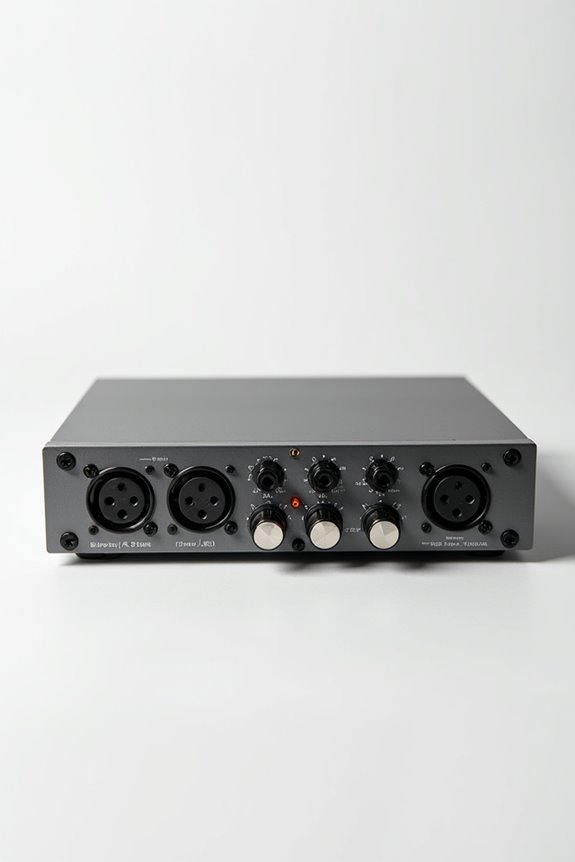
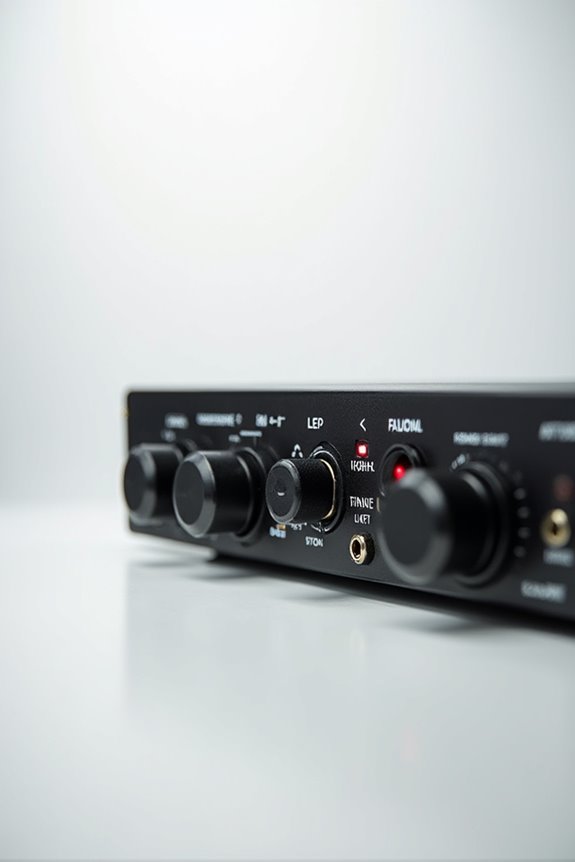

If your audio interface isn’t detected, let’s troubleshoot together! First, check the power supply and all connections; verify cables are in good shape and securely plugged in. Next, update drivers from the manufacturer’s website—this can resolve many issues. Also, confirm your interface’s set as the default device in sound settings. If it’s still playing hard to get, we can explore more advanced fixes! 😊✨ Want to dive deeper into those steps?
Key Takeaways
- Verify power supply and ensure the interface is properly connected to the computer using compatible cables.
- Update or reinstall drivers from the manufacturer’s website to resolve detection issues.
- Set the audio interface as the default input/output device in system sound settings.
- Test different USB ports and inspect cables for damage; replace if necessary.
- Ensure audio permissions are granted for the interface in system settings to allow access.
Hardware Power and Connection Checks
You may be interested
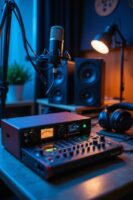
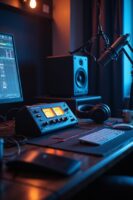
When it comes to troubleshooting an audio interface that isn’t detected, the first step often requires us to check the hardware power and connections! 🔌 We can think of it as laying the groundwork for our audio adventure.
First, let’s verify the power supply is reliable. If your interface uses an external adapter, check it matches the required voltage. Don’t forget to inspect any LED indicators for signs of life! 🟢
Next, connection integrity is key. Look for any wear on those USB or Thunderbolt cables. Firmly connect both ends to your computer and interface—no one likes a loose connection! Let’s avoid daisy-chaining adapters, as that might trouble our signal strength. By tackling these checks first, we’ll be on the right path to solving the mystery! 🎶 Additionally, ensure that your interface supports USB-C connections, as compatibility issues can lead to detection problems.
Driver and Software Updates
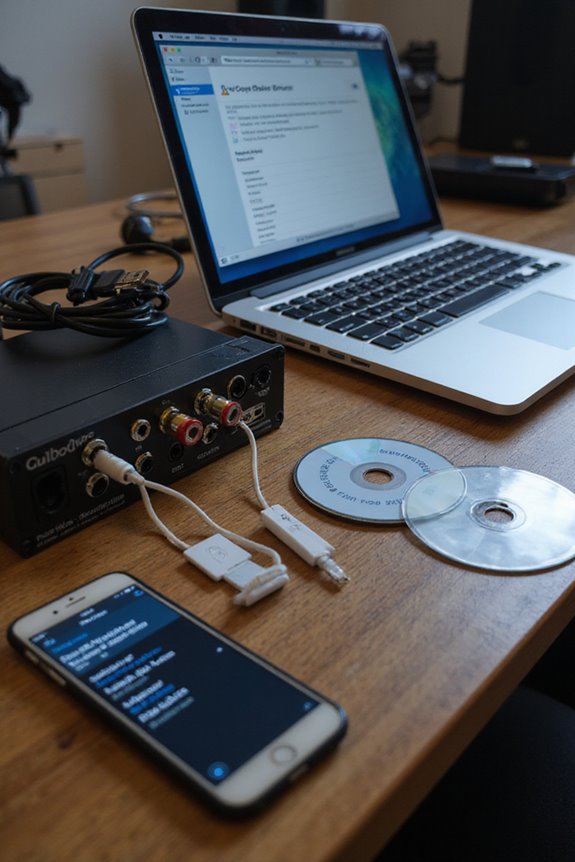
After checking our hardware power and connections, the next step in our troubleshooting journey is to turn our attention to driver and software updates. 🛠 Many of us might overlook this aspect, but it’s like ensuring our favorite musical instrument is finely tuned before a big performance!
First, let’s check for driver installation from the manufacturer’s website—keeping this up-to-date is essential for software compatibility. If your audio interface isn’t detected, it could be due to corrupted drivers or outdated firmware. It’s a good idea to also verify USB controller drivers on our computer. If we’re facing issues, reinstalling or updating these drivers can work wonders. Remember, a little update can go a long way in keeping our audio experience harmonious! 🎵 Additionally, ensuring your interface has ASIO support can greatly reduce latency and improve overall performance.
Recommended Products

Mix and record through AAX DSP plugins with rock-solid sub-1 ms latency monitoring

PREMIUM DESKTOP AUDIO INTERFACE: AudioFuse Studio gives you world-class preamps, incredible connectivity, a versatile feature set, hands on control and a host of clever design features. Transform your musical ideas into pro-sounding recordings and connect every aspect of your studio with the ultimate desktop audio interface: 8 analog inputs + digital I/O, 4 DiscretePRO preamps, Bluetooth receiver, 8 channels I/O over ADAT and a premium creative software bundle included.
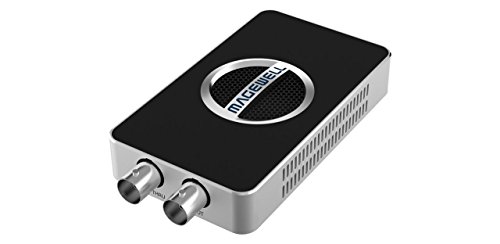
4K SDI Capture – Captures SD/HD/3G/2K/6G-SDI signals up to 4096×2160p30 or 1920x1080p90 for crystal-clear video quality.
Operating System and Audio Settings
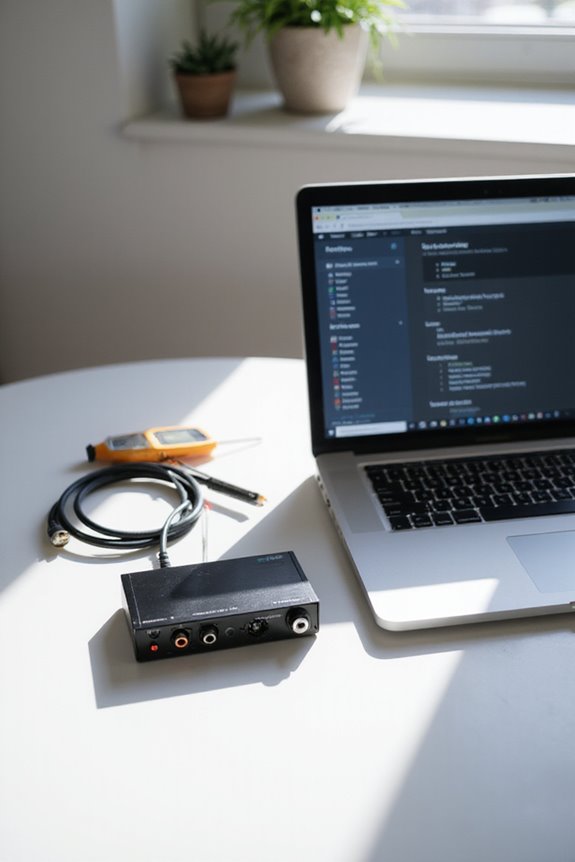
Troubleshooting audio issues can be a bit like finding the right note in a complex melody! 🎶 To confirm our audio interface is properly detected, it’s essential to explore the operating system and audio settings. First, let’s check for device compatibility! For Windows, navigate to Settings > System > Sound, and verify the interface pops up in both Input and Output lists. On a Mac, head to System Preferences > Sound. If it’s shy and doesn’t show, we might need to examine the Manage Sound Devices section or restart the device.
Also, don’t forget to set the interface as the default input/output device. Last but not least, check your audio permissions, as they can sometimes play hide and seek. Additionally, ensuring your interface meets audio quality standards is crucial for optimal performance. Let’s unravel this together!
Recommended Products

94-in/94-out USB 3.0 Audio Interface

24-bit/192kHz USB 3.0/Thunderbolt Audio/MIDI Interface with 4 Mic/Instrument Preamps

【4K Ultra HD PoE Camera with Audio】This 24-camera security system features 4K (8 MP) Ultra HD PoE cameras with audio. Additionally, the 4K security cameras are equipped with noise-reducing audio, ensuring you receive comprehensive audio information and enhancing the clarity of on-site details.
Cable and Port Troubleshooting
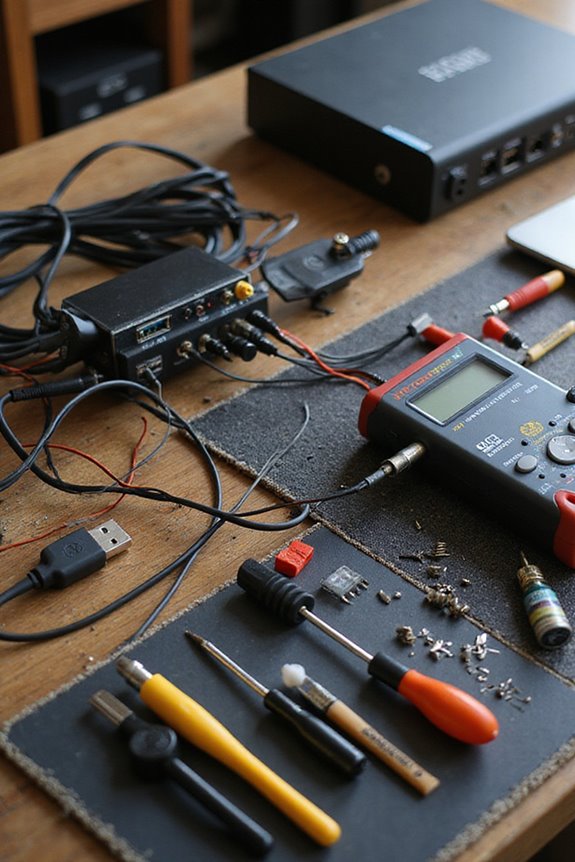
It’s often said that the right connection can make all the difference, and that couldn’t be truer for our audio interface! First, let’s explore some cable maintenance tips. Always use cables that are in good shape—no frays or kinks, please! If a cable looks old or damaged, it’s time for a replacement. Also, prefer high-quality, shorter USB cables for better performance. Additionally, ensure that your cables support high audio fidelity for optimal sound quality.
Now, onto port cleaning techniques! Make sure to plug your interface into a dedicated USB port, avoiding hubs and docks. Test different ports to rule out any duds. Don’t forget to clean out dust or debris—lightly using compressed air can do wonders! Let’s keep those connections strong, so we can hear what really matters!
Recommended Products

Premium HD Quality Screen Material: Immerse yourself in stunning visuals with our top-tier HBSI ALR screen material. With over 50% enhanced gain compared to CBSP screens, you'll relish in active 3D projections without compromising contrast. Experience the brilliance of 4K/8K projections with the support. AWOL VISION screen has an expansive 170° viewing angle and 0.8 peak gain, coupled with an acoustic transparent design and a bottom black border for 3D stereo surround sound needs.

[Redefined Ultra Short Throw – Cinematic Scale, Zero Compromise] With an industry-leading 0.16:1 throw ratio, the O2S Ultra projects a massive, breathtaking 150-inch display from just inches away from your wall. As the world’s most compact and lightweight RGB Triple Laser TV, it blends elegantly into any living space, delivering a maximum-scale image with a minimal physical footprint.

Qualifies cabling performance for 10/100/Gig Ethernet, tests all copper media cabling: twisted pair (Category 5-6A), coax, and audio
Device and Signal Recognition
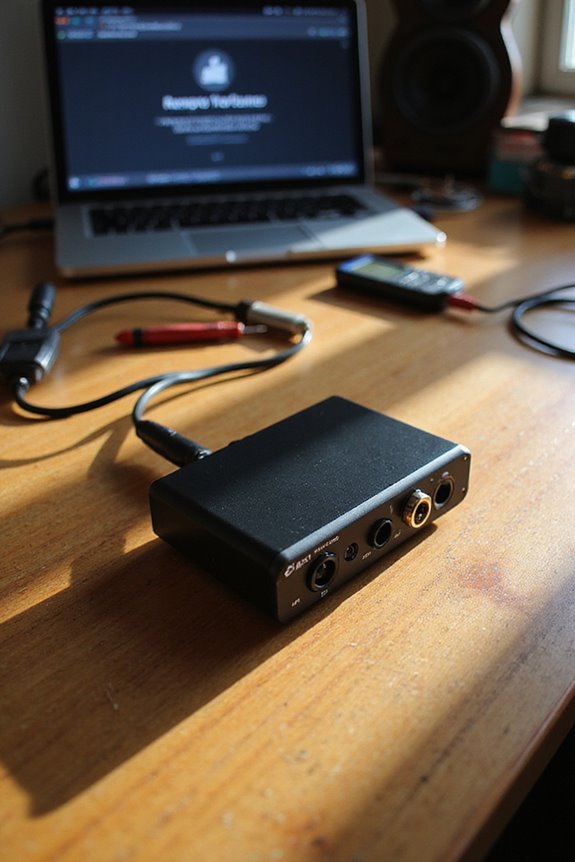
When we plug in our audio interface, we expect it to be recognized right away; however, things don’t always go as smoothly as we’d like! Often, we should check if our interface is bus-powered or needs an external power supply. If it’s the latter, power cycling might trigger recognition.
We also need to monitor device and signal status, as any signal interference could disrupt communication protocols. If nothing appears in the system settings, we might face deeper issues. Testing our interface on different USB ports or computers helps isolate problems. And remember, regularly validating recognition during setup saves us time! 🎶 We’re all in this together, and fixing these issues is part of the journey! Additionally, ensuring plug-and-play compatibility can simplify the detection process significantly.
Advanced Troubleshooting
Maneuvering the world of audio interfaces can sometimes feel like solving a mystery, especially when they aren’t detected right away. Let’s explore advanced troubleshooting techniques that can help us get back on track! First, make sure we’re using the latest drivers and firmware—check the manufacturer’s website regularly. If we’re still struggling, consider disabling antivirus software or checking for other conflicting applications.
Next, let’s test our USB ports and cables for any physical damage and prefer direct connections. If those don’t work, we can adjust our system’s audio settings, including buffer sizes. Additionally, ensuring that our audio interface supports high-resolution recording can further optimize performance. By applying these advanced configuration techniques, we’ll use effective troubleshooting methodologies to resolve those pesky detection issues! 🎛 Keep experimenting until we find the solution together!
Contacting Manufacturer Support
After we’ve tackled advanced troubleshooting techniques, it’s time to contemplate another effective route: contacting manufacturer support! If our audio interface isn’t responding, reaching out can provide the guidance we need.
Most manufacturers have various support channels. We can call dedicated lines, shoot an email, or even hop on live chat! Before contacting them, it’s wise to gather details like our device model number and any error messages we’ve encountered. This makes the process smoother and helps tech support quickly identify our issue.
Additionally, checking their official website can reveal helpful troubleshooting tips, FAQs, and community forums. Remember, if our problem lingers, don’t hesitate to ask for escalation; persistence can pay off! Let’s get that interface working together! 🎶
Testing on Different Computers
How can we determine if our audio interface issues are tied to a specific computer? Let’s run some tests! First, we should connect our interface directly to the computer—skip the USB hubs, as they can cause problems. Next, let’s try different USB ports, since some offer better interface compatibility than others.
We can test our audio interface on multiple computers to see if it gets recognized. If it works elsewhere, we can shift our focus to software or driver troubleshooting techniques on the problematic machine. Plus, checking for the latest drivers and ensuring our cables are the right type can save us some headaches! Let’s make this tech journey smoother together! 🎧✨
Recommended Products
Outstanding 4K Visuals, Mapped Perfectly to Your Space: X1 Pro's Triple Laser engine delivers 3,500 ANSI lumens, 1.07 billion colors, and 56,000:1 dynamic contrast; SpaceFlow auto-maps your wall's exact 3D shape and texture — fitted precisely to any surface for a truly cinematic image.

Deliver inspired performances with 400-note total polyphony across 3 engines

Premium V-Drums kit with flagship-class sound
Importance of Quality Cables and Connections
When we immerse ourselves in the world of audio interfaces, we quickly realize that the quality of our cables and connections can make a huge difference! Using the right cable types—like balanced XLR or TRS—guarantees better signal integrity and noise resistance, especially over long distances. Good cable shielding and connector quality prevent pesky interference and guarantee stable connections. Regular cable maintenance, like checking for frayed insulation or bent connectors, keeps our gear performing at its best. Let’s not forget, unbalanced cables can let noise creep in! So, whether you’re jamming in your bedroom or rocking the stage, paying attention to these details is key to achieving that pristine audio we all crave! 🎶
Recommended Products

FEATURE RICH: 10-Channel SDI/HDMI switcher, supports up to 7 layers, 28-channel digital audio mixer, DVE for Transitions and Keyers, Multiview monitoring, talkback, media players, full front panel control with LCD and more!

Bundle Includes: 2 x Adam Audio A7V Powered Two-Way Studio Monitor, 2 x FocusProAudio 25-Feet XLR Male to Female Microphone Cable, 2 x PX-TMXM2 1/4-Inch TRS to XLR Male to Male Balanced Cable (10-Feet), and Studio Monitor Isolation Pads for 8-Inch Speakers (Pair)

Bundle Includes: Adam Audio T10S 10-Inch Powered Studio Subwoofer, Adam Audio T7V 7-Inch Powered Studio Monitor (Pair), 2 x 25Ft XLR Cable Male to XLR Female Microphone Cable, and 2 x 1/4-Inch TRS to XLR Male to Male Balanced Cable (10-Feet)
Frequently Asked Questions
Can Audio Interfaces Work With Mobile Devices?
Absolutely, audio interfaces can work seamlessly with mobile devices, enhancing audio quality considerably. We love the convenience of mobile compatibility, allowing us to record or stream with fantastic sound anytime, anywhere.
What Should I Do if My Interface Is Making Noise?
If we’re facing noise issues with our interface, let’s focus on noise reduction through proper cable management, grounding, and input adjustments. We can explore audio troubleshooting methods together, ensuring our sound remains clear and enjoyable.
How Can I Check if My Computer Identifies the Interface?
Like an orchestra tuning before a performance, we should first navigate our audio settings and then plunge into Device Manager. Let’s guarantee our interface is recognized and ready to deliver the sound we crave together.
Do I Need to Install Software for the Interface to Work?
Yes, we need to install the driver to guarantee compatibility with our audio interface. Without proper installation, we might face compatibility issues, limiting the functionality and recognition of the device by our software.
Can Using Multiple Audio Interfaces Cause Detection Issues?
When we use multiple audio interfaces, we can definitely encounter detection issues. Audio latency and interface compatibility often clash, leading to frustrating delays and performance hiccups – a challenge many of us face together.