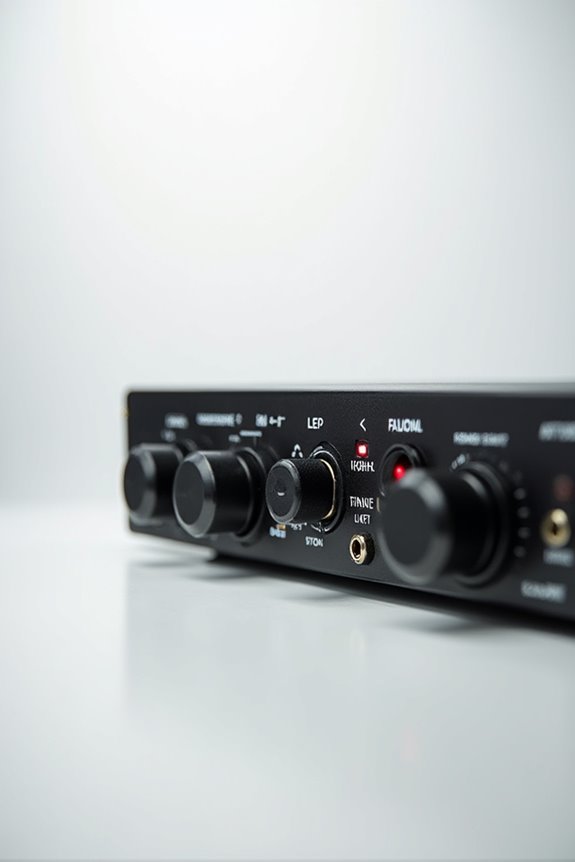
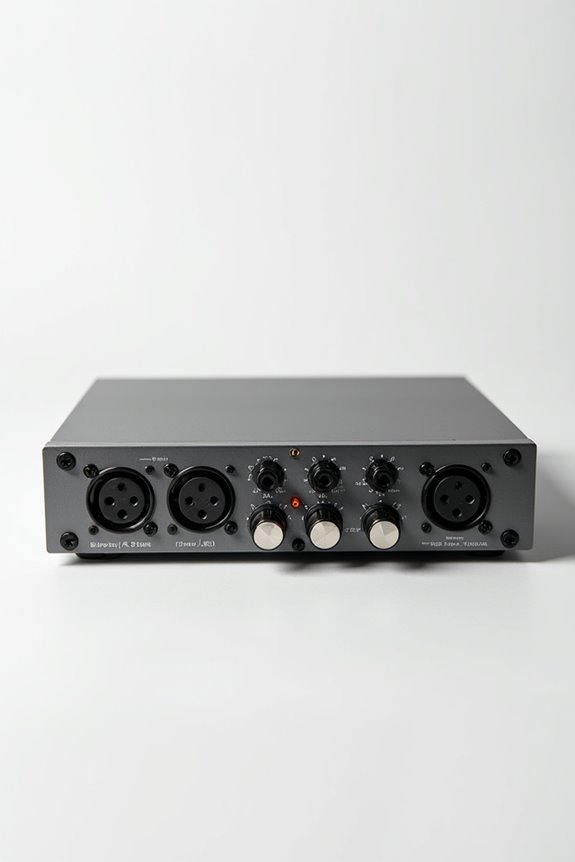

If our audio interface isn’t recording, let’s troubleshoot together! First, check if we’ve installed the latest drivers from the manufacturer’s site. Next, make sure we’re connected directly to the computer—USB hubs can drain power. Don’t forget to verify our DAW settings for input routing and track arming! Also, confirm the operating system recognizes our interface. With a little detective work, we can get back to rocking those recordings! 🎸 Keep hanging around for more tips!
Key Takeaways
- Ensure your audio interface drivers are up-to-date and compatible with your operating system and DAW.
- Check USB connectivity; connect the interface directly to the computer and test different ports or cables.
- Verify that the input channels in your DAW are correctly configured and armed for recording.
- Review your operating system audio settings to confirm the interface is recognized and configured properly.
- Monitor any software permissions and internal routing issues that may affect input and output functionality.
Incorrect or Missing Driver Installation
You may be interested
When it comes to recording with your audio interface, there’s nothing more frustrating than realizing it’s not capturing any sound! 🎤 So, if we find ourselves facing this issue, often, the culprit is an incorrect or missing driver installation.
To fix potential installation problems, let’s make sure our drivers are compatible with both our audio interface and the operating system. It’s essential to install the latest drivers directly from the manufacturer’s website, rather than relying on generic options. Incomplete installations can lead to recognition issues, so it’s wise to uninstall old drivers completely before reinstalling. If we encounter persistent errors, exploring alternative drivers like ASIO4ALL can sometimes save the day! Remember, keeping everything updated is key to seamless recordings! ✨ Additionally, ensuring that your interface supports low-latency performance is crucial for real-time monitoring during recordings.
USB Connectivity and Hardware Issues
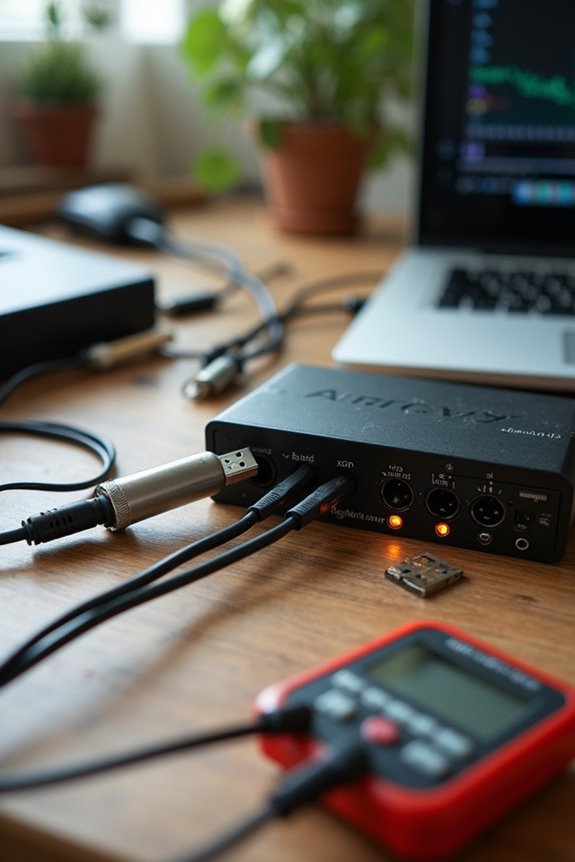
Could your USB connectivity be the reason your audio interface isn’t recording? 🤔 It’s a common hurdle that often goes unnoticed, but resolving these issues can make all the difference in getting your recordings back on track!
First, let’s chat about USB power. Verify you’re connecting directly to your computer, as hubs can drain power. If you’re experiencing connection reliability issues, try different USB ports or cables; faulty cable quality can be a sneaky culprit.
We should also consider hardware testing—experimenting with another machine can help identify faults. Monitor the bus configuration, too; sharing bandwidth can lead to audio glitches. By checking these areas, we stand a better chance of achieving stable, high-quality recordings! 🎶 Additionally, ensure your interface is compatible with ASIO-optimized drivers to minimize latency and improve performance.
Recommended Products
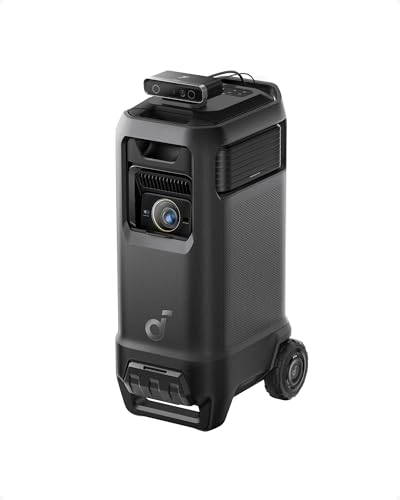
Outstanding 4K Visuals, Mapped Perfectly to Your Space: X1 Pro's Triple Laser engine delivers 3,500 ANSI lumens, 1.07 billion colors, and 56,000:1 dynamic contrast; SpaceFlow auto-maps your wall's exact 3D shape and texture — fitted precisely to any surface for a truly cinematic image.

Ultra High Definition 4K (3840x2160) FOUR TIMES the resolution of 1080P! 32 Channel 6K 12MP NVR 4K Security Camera System with (32) H.265+ 4K (8MP) @20FPS Weatherproof 2.8mm Wide Angle PoE IP Dome Cameras (Built-in Microphone)

Ultra High Definition 4K (3840x2160)FOUR TIMES the resolution of 1080P! 32 Channel 6K 12MP NVR with (32) H.265+ 4K (8MP) @20FPS Weatherproof 2.8mm Wide Angle Microphone Audio & Video PoE IP Bullet Cameras
DAW Configuration and Input Routing Problems
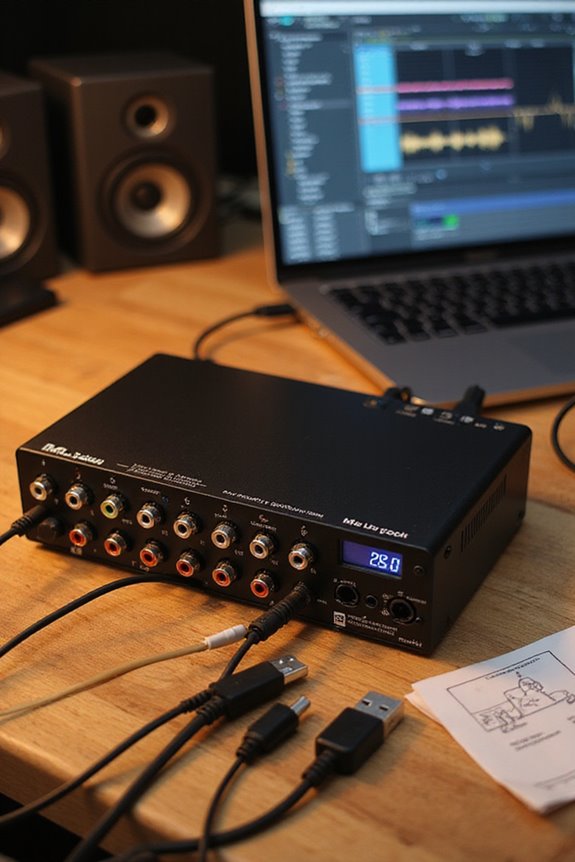
Maneuvering through the maze of DAW configuration and input routing problems can feel overwhelming, but we’ve got your back! 🎧 Ideally, we want to guarantee everything is set up correctly to capture those sweet sound waves without a hitch.
First, let’s check for input channel misconfiguration. Make sure audio tracks are assigned to the correct input channels. If you overlook track arm settings, you might end up with no signal recorded—yikes! 🔇 Remember to activate input monitoring, too; otherwise, you’ll wonder why you hear nothing but silence.
Finally, keep an eye on internal routing conflicts and sample rate mismatches, as these can create chaos in your audio journey. Additionally, ensuring your audio interface supports 24-bit/192 kHz resolution can significantly enhance your recording quality. Let’s align everything and hit record, folks!
Recommended Products

👍 Organic-sounding discrete R2R ladder ▶️ The R30’s discrete R2R module converts digital signals directly through a resistor ladder network. This design demands extreme resistor matching and precision, but it pays off with a more organic-sounding conversion.
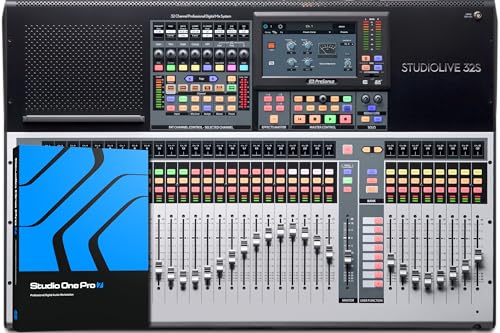
Portable, and flexible digital console for installed sound, mobile applications, and recording with dual-core FLEX DSP Engine powering 286 simultaneous processors

40-input channel, 25-bus digital mixing console for Studio and Live application
Software Settings and Compatibility
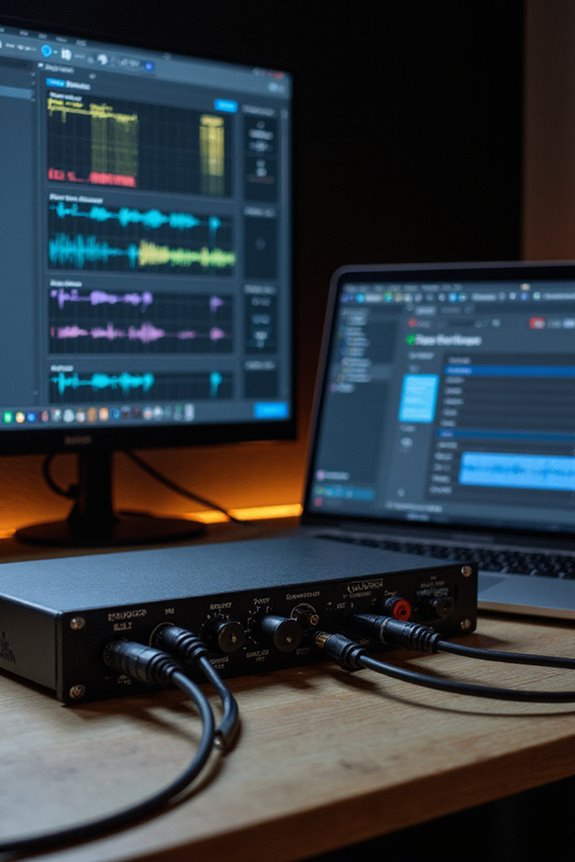
Getting your audio interface to work smoothly with your software can be a bit of a puzzle, but don’t worry, we’re here to help you piece it together! 🎧 To start, let’s consider driver compatibility. Make sure you’re using the latest software updates for your interface—outdated drivers can lead to recognition issues. Some software, like DAWs, communicate directly through specific driver types, and different interface modes (like ASIO vs. Class Compliant) can create conflicts.
If you’re experiencing detection problems, try uninstalling any proprietary control software that might be hindering performance. Also, double-check your permission settings in the software, as these can greatly impact input/output routing. Remember, updating drivers and aligning them with your software is key to a smoother experience! 🛠 Additionally, ensure your interface supports ASIO drivers to maximize compatibility with Pro Tools.
Recommended Products
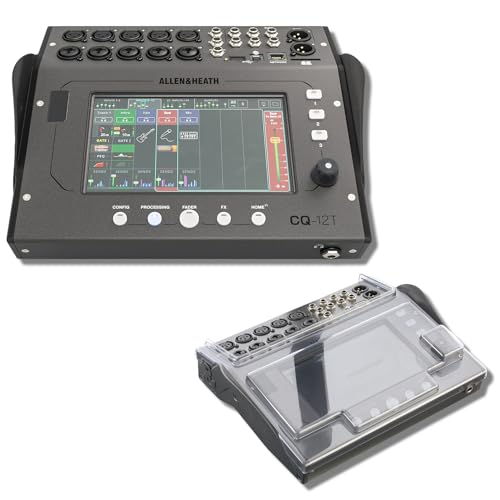
STUDIO PROTECTION DIGITAL CONSOLE — CQ-18T MIXER + PATENTED DECKSAVER DUST COVER: A desk-bound digital console needs more than the mixer alone — you need a cover that seals the touchscreen and controls from dust between sessions and absorbs drink spills at the desk. This bundle pairs the Allen & Heath CQ-18T digital mixer with the Decksaver DS-PC-CQ18T smoked polycarbonate cover cut specifically for the CQ-18T. Streamers, podcasters, home recording engineers — protect the touchscreen, start recording today.
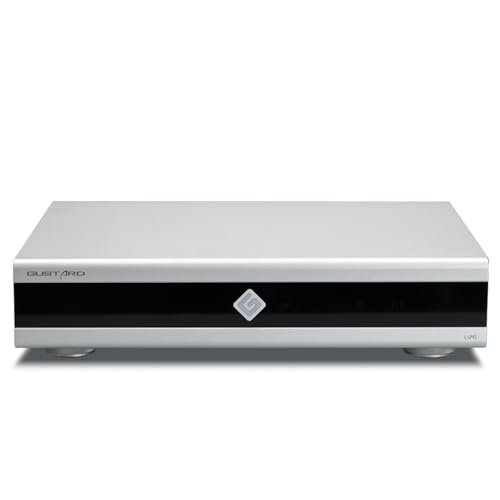
Gustard U26 is a professionally customized digital interface DDC. The Precision digital bridge for High-End Audio Systems. Support USB, 10MHz Clock input and IIS, IIS-G, AES, Optical, Coaxial and S/PDIF BNC Coaxial Output. Good partner for Gustard R30, X30, ect

Multi-purpose 6-channel mixer and high resolution (24-bit 192 kHz) 2-track audio recording /playback computer interface (MAC or PC).
Operating System Audio Configuration
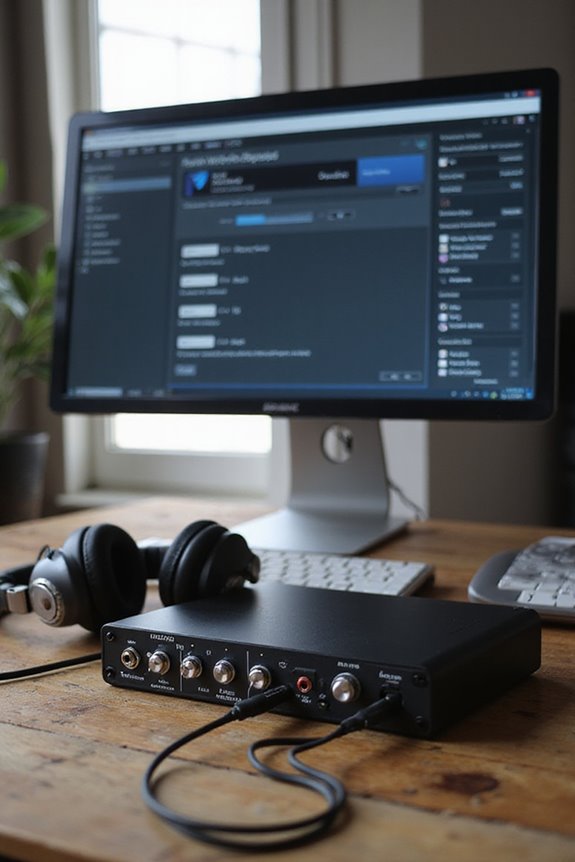
Once we’ve set the stage with software settings and compatibility, it’s time to get our operating system in sync with our audio interface! First, let’s verify our OS recognizes the interface as an audio input device. On macOS, check the Audio MIDI Setup; on Windows, head to the Sound Control Panel. Remember, if the interface is selected, our built-in mic might get muted!
Next, we need to check device selection and configure the sample rate and bit depth. Mismatches here can lead to recording dropouts. Let’s also manage input volume levels—too low means no sound, while too high can distort our precious audio! Finally, don’t forget to authorize permissions for our DAWs! 🎤✨ Additionally, ensure that your interface supports audio quality standards, as inadequate specifications can hinder recording performance.
Hardware or Firmware Defects
When it comes to recording, let’s not overlook the importance of hardware and firmware! If our audio interface isn’t behaving, it could be due to hardware defects or firmware corruption. We might have issues like faulty cables or unreliable USB ports causing those annoying connection hiccups. Take it from us: direct connections are usually best!
Additionally, our internal components, like the analog-to-digital converters, can fail or get damaged, leading to distorted sound. And let’s not forget about the need for regular firmware updates—neglecting this can result in complete chaos with input detection! It’s also essential to ensure that our interfaces have high-quality mic pre-amps to avoid unnecessary recording issues. So, let’s keep our interfaces happy and functioning smoothly by maintaining our hardware and updating firmware regularly.
Recommended Products

Laser-Powered Detail: Make your movies shine with the intensity, which is so bright you can even watch with the lights on, then watch every pixel pop in 4K UHD quality—perfect for home entertainment and office or business use.

LSX II offers the highest quality sound in its size with streaming up to 24bit/384kHz, making high-fidelity sound accessible to more listeners.Waterproof : No

Multi-Camera Video Switcher with SDI, HDMI, NDI & UVC Connectivity : mini-mx SDI supports 4x HDMI 2.0 and 4x 3G-SDI inputs to connect professional cameras, DSLRs, camcorders and PTZ cameras. Dual HDMI outputs and USB 3.0 UVC enable direct connection to OBS, Zoom, Teams and other streaming platforms. Supports RTMP(S) streaming and NDI|HX2 workflow for flexible live production setups.(Note:pls UPDATE to the latest firmware before use via LAN or USB drive. See user manual.)
Troubleshooting Steps to Diagnose the Issue
Before we plunge into troubleshooting your audio interface, let’s remember that diagnosing the issue can be as satisfying as finding the right mix in a song! 🎶 To start, we need to guarantee everything is connected properly. First, let’s check our cable quality; damaged wires can disrupt our signal. Next, we should verify audio levels and gain staging for ideal recording. Grounding issues? We’ll want to make sure connectors are properly grounded. Testing microphones and using different USB ports might also help. Finally, don’t forget those software updates! Ensuring our interface compatibility with the latest drivers can make all the difference. With these steps, we’ll be well on our way to resolving the mystery of our non-recording audio interface!
Recommended Products

Deliver inspired performances with 400-note total polyphony across 3 engines

Premium V-Drums kit with flagship-class sound

SONY ALPHA A7 IV CAMERA BUNDLE INCLUDES: Alpha a7 IV Camera | Battery | Charger | Body Cap | Eyepiece Cup | Multi Interface Shoe Cap | USB-A to USB-C Cable | Shoulder Strap | FE 24-70mm f/2.8 GM II Lens
Frequently Asked Questions
How Can I Tell if My Interface Is Powered Correctly?
To check if our audio interface’s powered correctly, let’s look for the power indicator light. We should also verify our connection types are secure, testing with known-good USB ports or power sources for assurance.
What Should I Do if My Interface Is Not Detected at All?
Sometimes, our beloved interfaces have a mind of their own! For those pesky connection issues, let’s explore some interface troubleshooting: check cables, reboot devices, and make certain our system recognizes everything right. Hope’s around the corner!
Are There Any Compatibility Issues With Specific Audio Interfaces and DAWS?
When using different audio interfaces with DAWs, we should always check for audio drivers and recent software updates. Compatibility issues can arise, but together, we can navigate these challenges for smoother recording experiences.
How Do I Reset My Audio Interface to Factory Settings?
Did you know that nearly 70% of audio interface users sometimes face issues requiring resets? To restore factory settings, we can explore various reset methods available for our specific models, ensuring peak performance and creativity together.
Can Environmental Factors Affect the Performance of My Audio Interface?
Absolutely, we can’t overlook room acoustics and temperature extremes; they greatly impact our audio interface’s performance. Proper environments keep our recordings clear, ensuring we achieve the quality we all aim for together.