

Yes, we can absolutely use two audio interfaces at once! 🎧 On Mac, we can leverage Aggregate Devices, maximizing our input/output options with customizable settings. For Windows, it gets trickier since ASIO only allows one interface at a time, but with software like Voicemeeter, we can route audio efficiently. Just remember, synchronization and latency issues may arise, so we need to be cautious. If you’re curious about optimizing your setup, there’s more to explore!
Key Takeaways
- MacOS supports using multiple audio interfaces through Aggregate Devices, allowing you to combine them seamlessly for expanded input/output.
- Windows generally restricts the use of multiple interfaces due to ASIO limitations, often requiring third-party software to manage.
- Synchronization is critical; unsynchronized interfaces can cause latency and echo issues during recording.
- Different audio interfaces can provide unique sound characteristics, enhancing creative possibilities in audio production.
- Using multiple interfaces can be complex and may require careful configuration to avoid conflicts and latency problems.
Understanding Audio Interfaces
You may be interested



Let’s explore the world of audio interfaces! 🎧 These essential tools bridge the gap between your instruments and your computer, converting those lovely analog signals into digital audio we can work with. Audio interface types vary widely, from basic models to advanced units with multiple inputs. What’s vital is understanding interface connectivity; most connect through USB, Thunderbolt, or Firewire.
They often include features like preamps and digital-to-analog converters, key components for quality sound. When using multiple interfaces, we must consider latency and clock synchronization to keep everything tight. It’s like herding cats—challenging, but totally doable! With the right setup, we can enhance our recording capacity and create some fantastic music together. Additionally, advanced converters in interfaces like Antelope Audio’s can significantly elevate the overall sound quality. Let’s make this journey enjoyable!
Macos Aggregate Devices

Now, we can choose our connected interfaces as subdevices and easily rename or reorder them for a customized approach. Don’t forget about clock source configuration! Make sure to pick the most stable interface as the clock source, enabling drift correction on other devices to avoid timing issues. With this setup, we maximize our input/output capabilities without complicating our workflow—how cool is that? 🎶 Additionally, utilizing models with multiple combo XLR/line inputs enhances versatility and connectivity options for your recording setup.
Windows Multi-Interface Challenges

While it may seem straightforward to use multiple audio interfaces on Windows, we quickly run into some hiccups that can leave us scratching our heads. The Windows limitations mean that we can’t easily aggregate devices like we can on MacOS. With ASIO restrictions, only one audio interface works at a time for both input and output, frustrating, right? Though third-party options like ASIO4ALL let us combine multiple WDM devices, they can introduce latency and sync challenges. So, while we can experiment with software like Voicemeeter to route audio, it often feels like we’re aiming for that perfect setup, only to hit another wall. Let’s navigate this audio maze together! 🎶 Additionally, using interfaces with low latency under 10 ms can significantly enhance your recording experience.
Recommended Products

USB-C Audio Interface with 8 Preamps

PREMIUM DESKTOP AUDIO INTERFACE: AudioFuse Studio gives you world-class preamps, incredible connectivity, a versatile feature set, hands on control and a host of clever design features. Transform your musical ideas into pro-sounding recordings and connect every aspect of your studio with the ultimate desktop audio interface: 8 analog inputs + digital I/O, 4 DiscretePRO preamps, Bluetooth receiver, 8 channels I/O over ADAT and a premium creative software bundle included.

Sound better than ever with Air on 18i20’s eight mic pres
Synchronization and Latency Issues
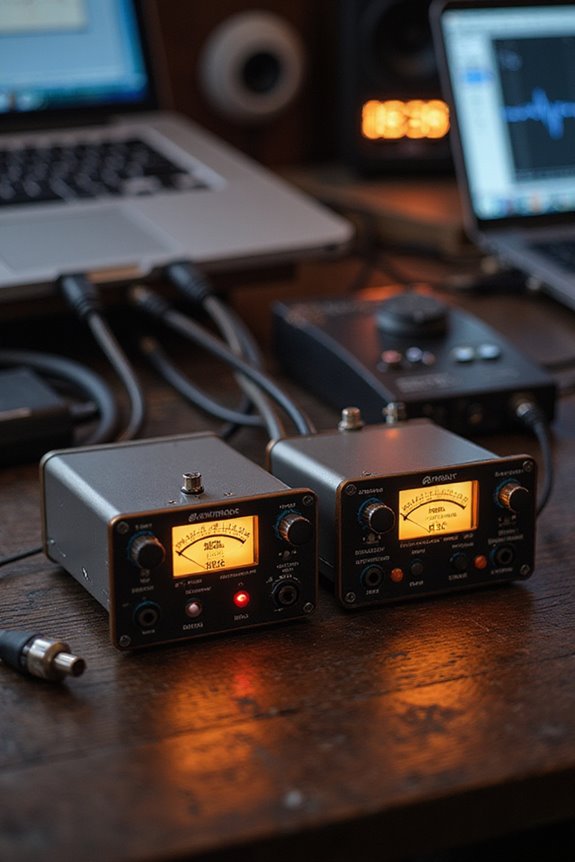
True synchronization requires using clock signals through Word Clock or S/PDIF connections, keeping our audio quality intact. Windows users need to watch out for latency discrepancies; ASIO4ALL might not cut it. Mac fans can leverage aggregate devices and “Drift Correction,” making things easier! However, we might still need some manual latency compensation for perfect playback. Just remember: unsynchronized interfaces can create echoes and timing shifts, adding unnecessary headaches to our music-making experience. Let’s keep our tracks tight! 🎶 Additionally, the number of connections on your audio interfaces plays a crucial role in achieving seamless integration.
Use Cases for Multiple Interfaces

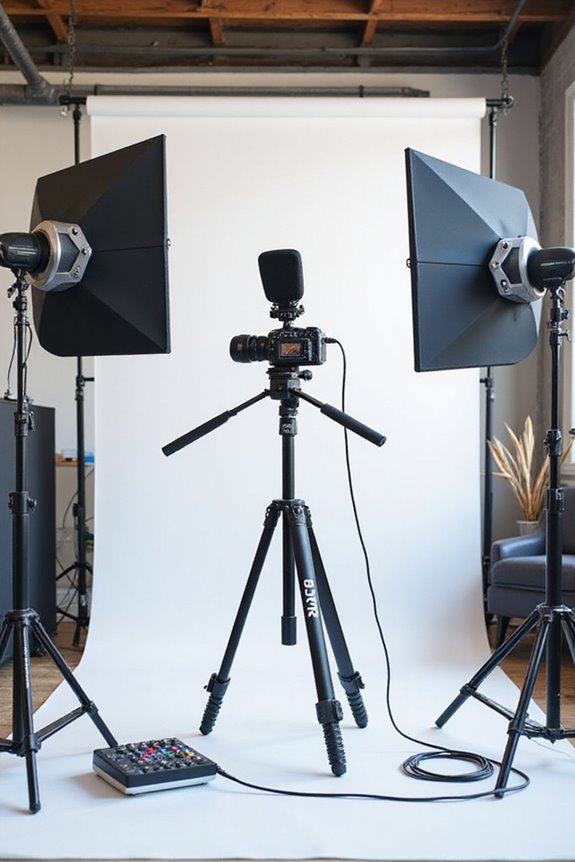
When we consider the benefits of using multiple audio interfaces, it becomes clear that they can greatly enhance our recording and mixing capabilities. Whether we’re tackling band recordings, podcast setups, or live performances, having multiple interfaces provides us with the flexibility we need!
- Expanded Inputs: Connect more microphones for those epic multitrack sessions!
- Sound Quality: Different preamps let us blend unique sounds for richer audio.
- Creative Control: Use one interface for recording and another for playback—hello, tailored sound!
- Cost Efficiency: It’s often cheaper to use two smaller interfaces than one high-end model.
In specialized environments, this setup also keeps things organized, ensuring every sound shines bright! 🎤✨ Additionally, using multiple audio interfaces can enhance sound quality by providing options for different recording situations and ensuring you capture the best audio possible.
Drivers and Software Solutions
Although it might seem intimidating to set up multiple audio interfaces, especially with the varying drivers and software out there, we can totally navigate this challenge together! 🎧 Understanding how different operating systems handle audio devices is key.
Driver Compatibility on Windows and macOS****
On Windows, ASIO drivers only support one interface at a time, making multi-device setups tricky. Mac users enjoy the magic of CoreAudio, allowing the creation of aggregate devices and simultaneous use—pretty cool, right? Zero-latency monitoring is crucial for achieving immediate feedback during recordings, so ensure your setup supports this feature.
Software Innovations
Multi-client drivers from brands like RME and MOTU enable multiple applications to access one interface, simplifying our workflow. Just remember, using the latest manufacturer-provided drivers is essential to activate these features and achieve seamless operation! Let’s conquer the audio landscape together!
Setup and Configuration Steps
Setting up and configuring multiple audio interfaces can feel like a challenging task, but don’t worry—we’re here to tackle it together! 🎉 First things first, let’s make certain we’ve got everything prepared.
- Physical Connections: Confirm all interfaces are connected via USB or Thunderbolt. Check for hardware compatibility to avoid surprises.
- Cable Quality: Using high-quality cables minimizes signal interference, so don’t skimp here!
- Aggregate Device in macOS: Open Audio MIDI Setup, create an Aggregate Device, and select your interfaces.
- Channel Mapping: In your DAW, assign inputs and outputs according to the device order.
- Synchronization: Choose a master clock interface and activate Drift Correction on others to keep everything in sync.
Now we’re ready to make some amazing sounds together! 🎶
Limitations and Considerations
Once we’ve got our audio interfaces set up and configured, it’s time to face some of the limitations and considerations that come with using multiple devices. 😅 Steering through compatibility issues can feel like walking through a minefield! For instance, Windows usually needs ASIO4ALL for multiple interfaces, while macOS uses Aggregate Devices, easing our load. But beware—similar interfaces can confuse drivers, creating conflicts.
Timing issues can pop up, too! If we don’t sync our devices properly, alignment misfires could delay our recordings. Plus, most DAWs only acknowledge one ASIO device at a time, which limits our creativity. We must balance performance trade-offs against our desired setup, ensuring we maintain smooth workflows without irregular glitches.
Future of Multi-Interface Support
As we look ahead to the future of multi-interface support, it’s clear that exciting developments are on the horizon! 🎉 The landscape of audio production is evolving, and both operating systems and driver technologies are responding to our growing needs for seamless multi-device integration.
In terms of future technologies, we can expect improved drivers that will tackle those pesky latency and sync issues. For instance, ASIO4ALL might get the upgrade we’ve all been hoping for. Meanwhile, more manufacturers are aligning their innovations with multi-device compatibility, making it easier for us to mix and match our gear—just think unified drivers! Industry innovations like enhanced digital clocking could finally give us the harmony we crave in our recordings. Let’s stay tuned!
Frequently Asked Questions
Will Using Multiple Audio Interfaces Increase Overall Audio Quality?
Imagine trying to paint a masterpiece with multiple brushes—more tools don’t guarantee better strokes. While we may amplify our audio resolution and signal processing, it doesn’t inherently enhance the essence of our sound.
Can I Connect Different Brands of Audio Interfaces Together?
Absolutely, we can connect different brands of audio interfaces, but we should be cautious about potential sync issues and driver compatibility. It’s essential to guarantee everything works harmoniously, so we can achieve ideal audio performance together.
How Do I Choose the Best Interfaces for Multi-Setup?
Choosing the best interfaces for our multi-setup can seem challenging due to setup complexity. But don’t worry! Let’s prioritize interface compatibility and look for those that work seamlessly together, ensuring a smoother experience for us all.
Do I Need Special Cables for Combining Audio Interfaces?
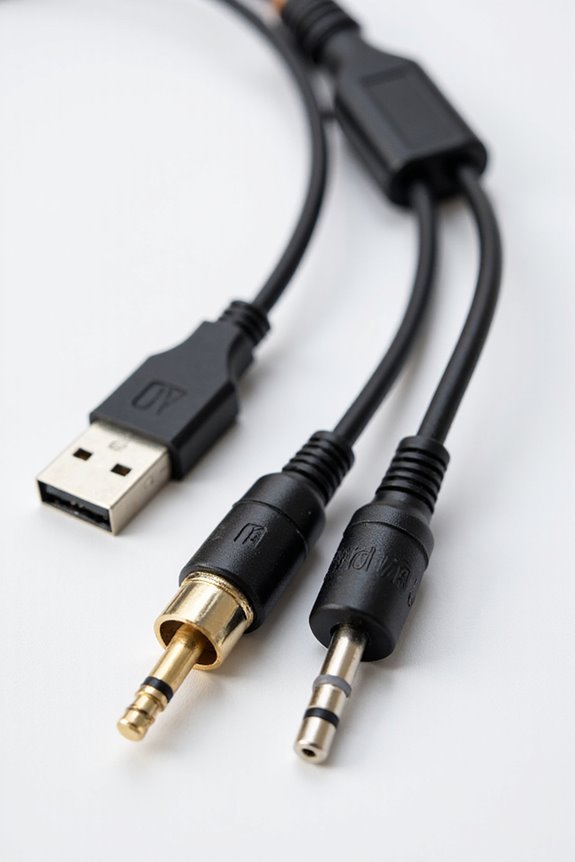
When we combine audio interface types, we don’t need special cables. Standard USB cables guarantee cable compatibility, while software solutions handle the integration. Let’s explore our setup without worrying about complex wiring!
Are There Any Recommended Brands for Multiple Audio Interfaces?
When we’re considering brands for multiple audio interfaces, we should check out M-Audio for their shared drivers, and Focusrite for great integration. Pairing them with good USB hubs can enhance our setup’s efficiency and performance.